File migration tool
This page describes the use of the File Migrator tool, designed to convert PALMTracer result folders generated by MetaMorph into the current file format used by PALMTracer in Napari.
Launch
Open a terminal or command prompt (
PowerShellon Windows) in the folder where you extracted the project files. Example forC:\palm-tracer. Open the terminal and type the following command:cd C:\palm_tracer, then press Enter.Make sure the virtual environment is activated if you are using one.
Launch Napari with the command:
napari
Note
If you did not create a virtual environment, Napari can be launched from anywhere.
Launch the tool in Napari:
Interface organization
The interface is intentionally simple and consists of: a button to select the folder to migrate, a summary of the files detected in this folder, and a button to start the migration. No modification is performed on the source folder.
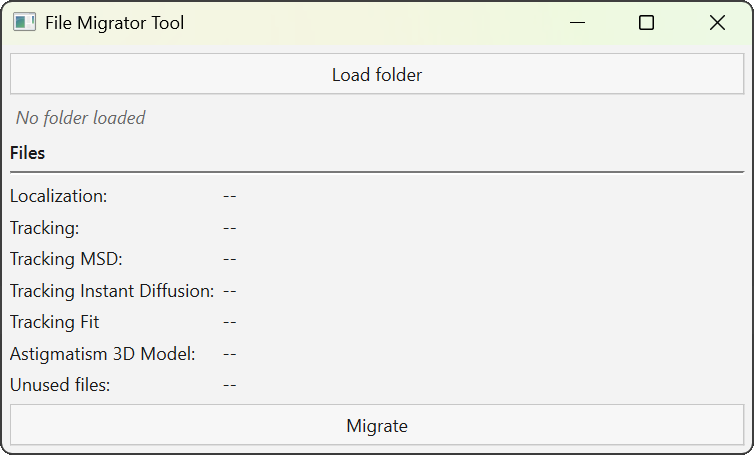
File migration tool interface.
Usage
Click Load folder to select a PALMTracer results folder generated by MetaMorph. The selected folder must correspond to a .PT folder generated by MetaMorph. If it does not strictly follow this naming convention, a warning is displayed, but the analysis can still be performed.
Once the folder is loaded: its name is displayed below the button, the folder content is analyzed, and the recognized files are listed by category. Hovering over the name with the mouse cursor displays the full path of the folder.
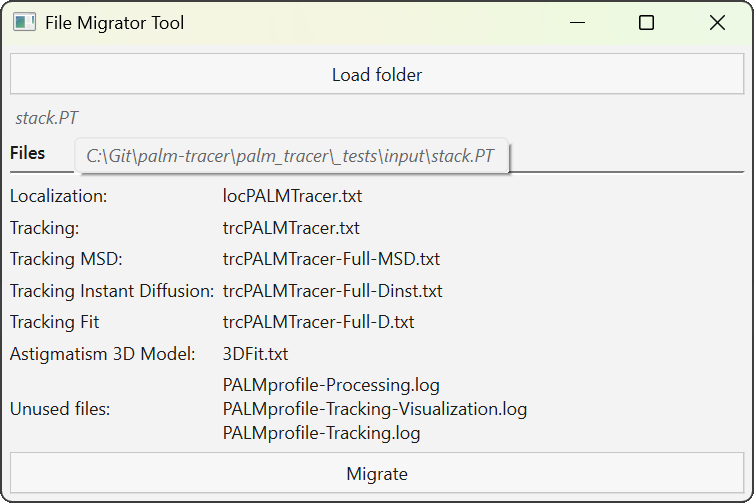
Display of the full file path.
Click Migrate to start file conversion. The migration creates a new output folder located at the same level as the original folder.
Naming rule: mon_experience.PT → mon_experience_PALM_Tracer. The source folder is never modified.
- Currently supported files:
Localization file:
locPALMTracer.txtTrajectory file:
trcPALMTracer.txtTrajectory computation files:
trcPALMTracer-Full-D.txt,trcPALMTracer-Full-Dinst.txt,trcPALMTracer-Full-MSD.txt3D astigmatism model file:
3DFit.txt