Alignment tool
This page describes the current interface and usage workflow. Some features (automatic computation of coefficients) are currently under implementation.
Launch
Open a terminal or command prompt (
PowerShellon Windows) in the folder where you extracted the project files. Example forC:\palm-tracer. Open the terminal and type the following command:cd C:\palm_tracer, then press Enter.Make sure the virtual environment is activated if you are using one.
Launch Napari with the command:
napari
Note
If you did not create a virtual environment, Napari can be launched from anywhere.
Launch the tool in Napari:
Interface organization
The tool is organized into two tabs corresponding to the two main steps of the workflow.
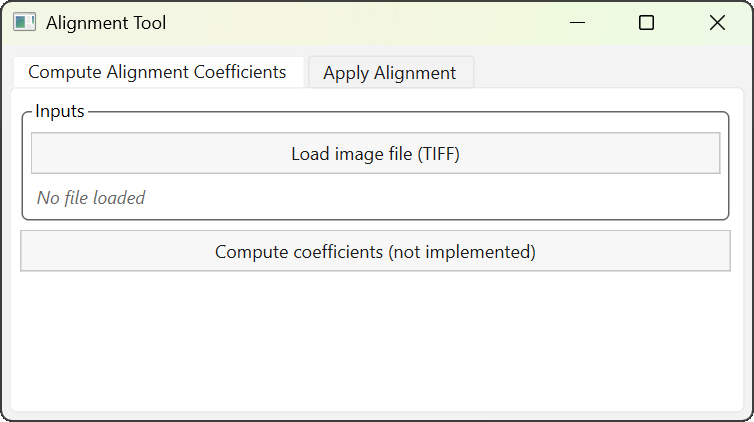
Tab 1: Alignment coefficient computation |
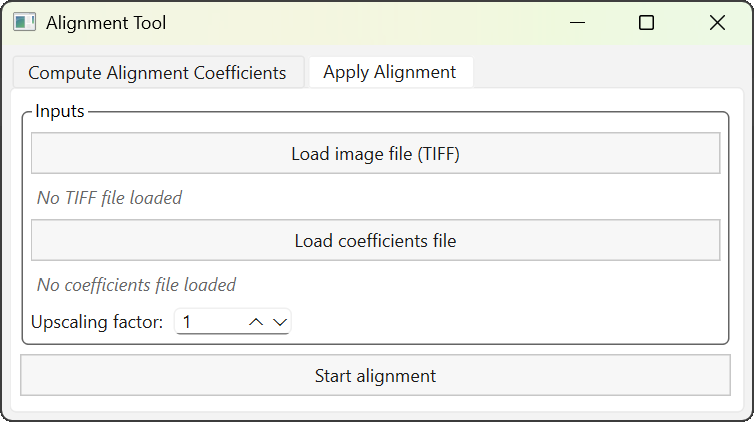
Tab 2: Alignment |
Coefficient computation (not implemented yet)
Warning
This feature is not yet implemented in the current version.
The computation of alignment coefficients is based on a TIFF file containing a single image composed of two side-by-side views: the reference view (left) and the distorted view (right).
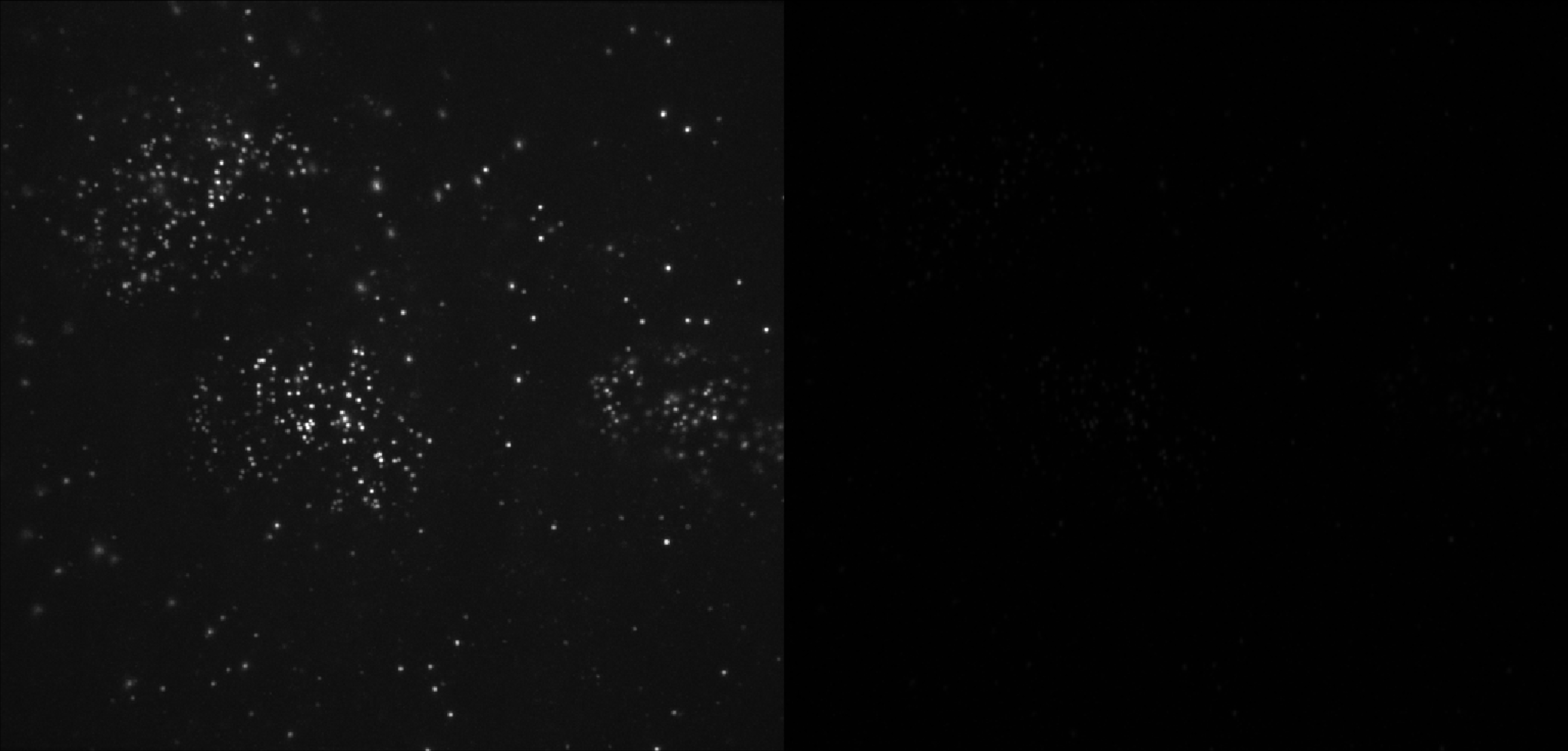
Example of a file used for coefficient computation.
After loading, the file name appears below the corresponding button. Hovering over the name with the mouse cursor displays the full path of the file.
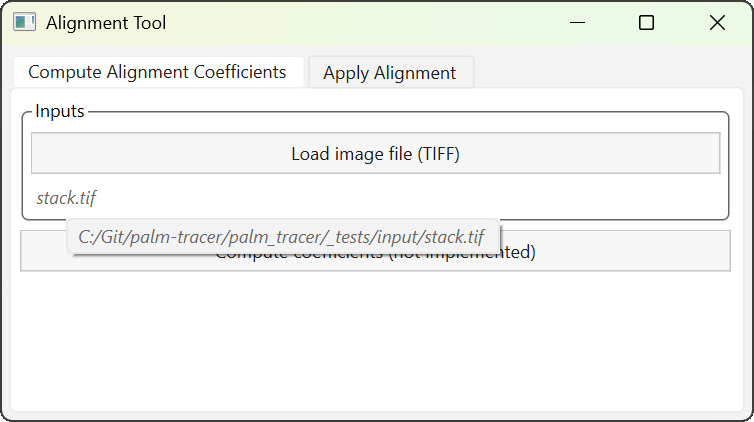
Display of the full file path.
Clicking the Compute coefficients button starts the computation. This generates a file named alignment_coeffs.csv in the directory of the reference file.
Stack alignment
This step applies alignment coefficients to a stack of TIFF images. You must provide: a TIFF file to be aligned and an alignment coefficient file.
Note
The currently supported format corresponds to the Metamorph format: a text file containing one header line followed by two lines of 10 values.
As before, the name of the loaded file is displayed below the button, and hovering over it allows the full path to be viewed.
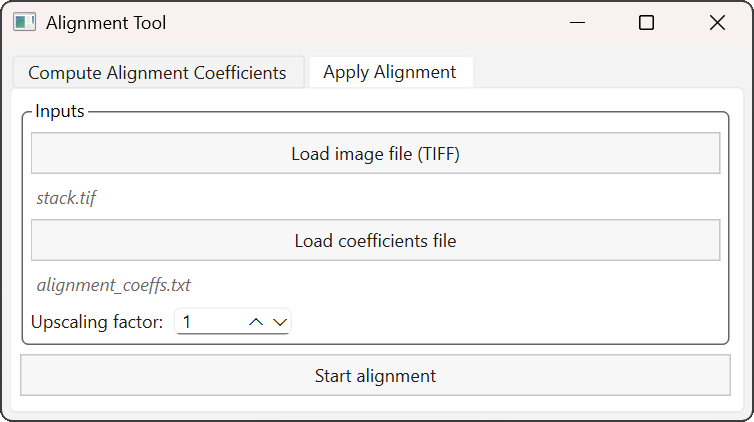
Stack alignment interface.
It is possible to specify a magnification factor to increase the subpixel accuracy of the deformation.
Important
Clicking the Start Alignment button starts the alignment computation. A new TIFF file is generated in the same directory as the original file, with the suffix _aligned. Example: stack.tif → stack_aligned.tif.
The original file is not modified.